

Instagram has no reverse image search. To find where a photo appears online, you need an outside tool such as Google Lens, Bing Visual Search, TinEye, or Yandex. If the photo is yours, search with your original file rather than a copy taken from Instagram.
This guide walks through each tool on desktop and phone, explains which Instagram photos Google can now see, and covers what to do when your work turns up on someone else's account or a business website. If you'd rather have the checking done for you, connect your Instagram to Pixsy.
Can you reverse image search on Instagram?
No. Instagram has no reverse image search. You cannot upload a photo or paste a link into Instagram and get a list of matching images. Instead, use your original file or a screenshot of the post and run it through Google Lens, Bing Visual Search, TinEye, Yandex Images, or Pixsy.
Search engines match pixels and visual patterns, while Instagram's own search only looks at accounts, hashtags, and captions.
Results also depend on what each engine has crawled. A photo that returns nothing today may still be reused on a site that blocks crawlers or sits behind a login.
Which Instagram photos Google can see
This matters more now than it did a year ago. On July 10, 2025, Instagram began letting Google, Bing, and other search engines index public posts from professional accounts, including photos, Reels, and captions.
The limits are narrow but important. Only public content on professional (business and creator) accounts is included. Personal accounts and private profiles are not indexed, and the feature applies to users 18 and over.
If you want out, go to Profile > menu > Settings > Privacy > Account Privacy. The toggle reads "Allow public photos and videos to appear in search engine results." Turning it off, or switching to a private or personal account, keeps your content out of search.
For photographers, that means more of your feed can show up in Google, and so can copies posted by business and creator accounts. An outside reverse image search is more useful now than it used to be.
Meta has also experimented with letting people generate AI images from public profiles. Here's what changed with Muse Image and the setting to check.
How to reverse image search an Instagram photo
Every reverse image search tool works the same way. You give it an image file or a direct image link, and it matches that against the pages it has crawled.
Screenshots work, but they strip metadata and lower match quality. If the photo is yours, search with the original file from your computer or phone.
Public posts are easy to search. Private accounts are not indexed, so no tool will reveal someone else's private content.
Below, we run through each tool in order of usefulness. Running the same photo through two or three engines is normal practice, since each crawls a different slice of the web.
First, get a copy of the image
Before you open any search engine, get the image itself or its location.
On your phone: take a screenshot of the post and crop it to the photo. Then tap the three dots and choose "Copy link" so you have the post URL for your records.
On desktop: Instagram blocks right-click saving, so take a screenshot of the photo and copy the post URL from the address bar.
Most tools need the image itself or a direct link to the image file. An Instagram post URL usually won't work in Google Lens or TinEye, so keep it as evidence rather than as your search input.
One warning: don't repost an image to your own feed just to search it. That creates a second public copy, and search engines may index it under your handle, which muddies ownership if you later need to send a takedown. It's also worth reading up on social media copyright terms so you know what reposting actually involves.
With the image ready, start with Google Lens.
Google Lens on a computer
On a computer, open lens.google.com or images.google.com and click the camera icon in the search bar. Upload the file or drag it into the search box. You can also paste a direct image link, but not an Instagram post link.
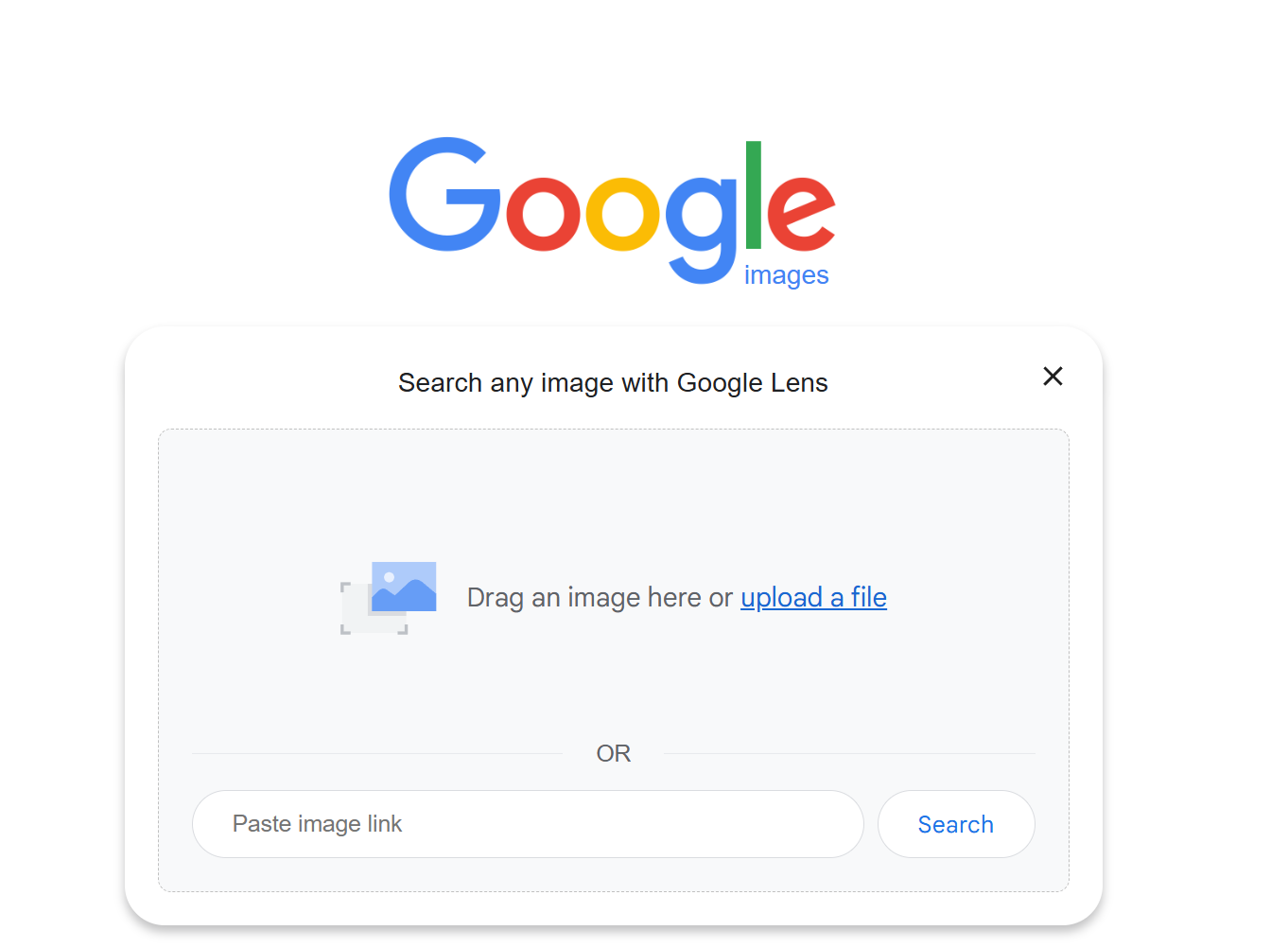
Lens shows visual matches first. Open the Exact matches tab for a list of pages that host your image, rather than a wall of lookalikes.
Two features are easy to miss. Search inside image reads text out of a screenshot, which helps when someone overlaid your photo with a menu or event details. Translate kicks in when a match sits on a foreign-language site, common if your work gets picked up overseas.
Expect noise. Lens often surfaces wallpaper, aggregator, and stock sites that recycle generic imagery. Confirm every match by eye before you act on it.
Google Lens on iPhone and Android
Google Lens works the same way on your phone, and it is usually the fastest option because the photo is already there. Here is how to run it on each platform.
In the Google app or Chrome: Tap the Lens icon in the search bar, then pick the photo from your camera roll.
On iPhone: Google Photos also puts a Lens button directly on individual images. That skips the export step entirely, so it beats saving a file and uploading it elsewhere.
On Android: The Google app home screen has a shortcut that opens Lens in one tap. From there, choose your saved image.
Results match what you get on desktop. If you need to pull writing out of an image rather than find copies of it, Lens copies text from the photo for you. That is handy when a business has cropped your shot and dropped a caption over it.
If Lens returns nothing useful, crop tight to the subject and search again. Crops often perform better than wide shots with background clutter.
Bing Visual Search
Bing is a useful second pass after Lens, especially when Google turns up nothing.
Open bing.com/visualsearch. Upload the file, paste the image URL, or drag and drop the photo. Then click the Pages with this image tab, which lists sites hosting your photo rather than pages that merely look similar.
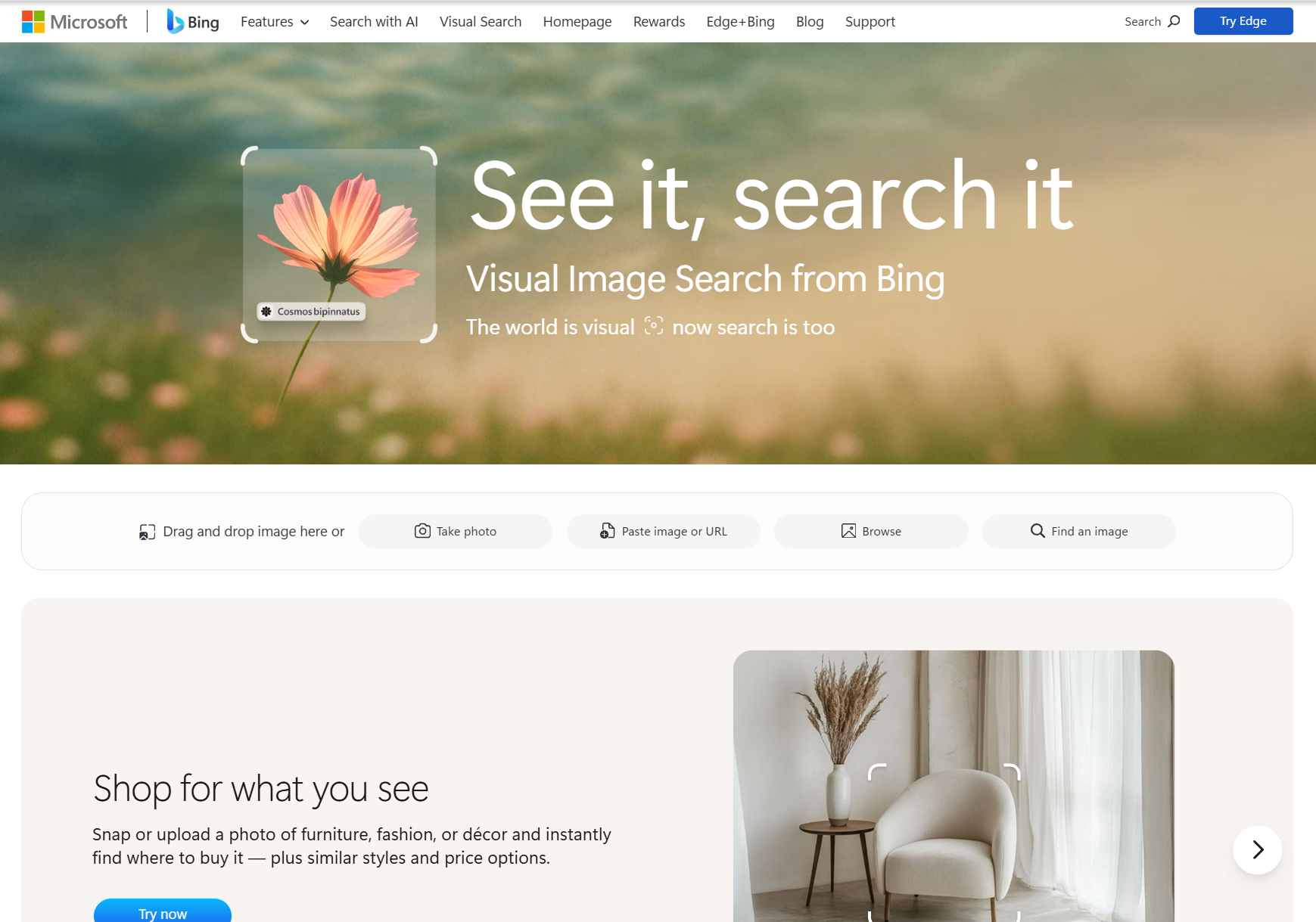
Bing's index skews differently from Google's, so a site Google misses can still show up here. That makes it worth running on photos you suspect were borrowed, particularly by small businesses and on older pages.
Ignore the related and shoppable results unless the reuse turns out to be a product listing.
When you do find a match, collect the evidence before you contact anyone.
TinEye
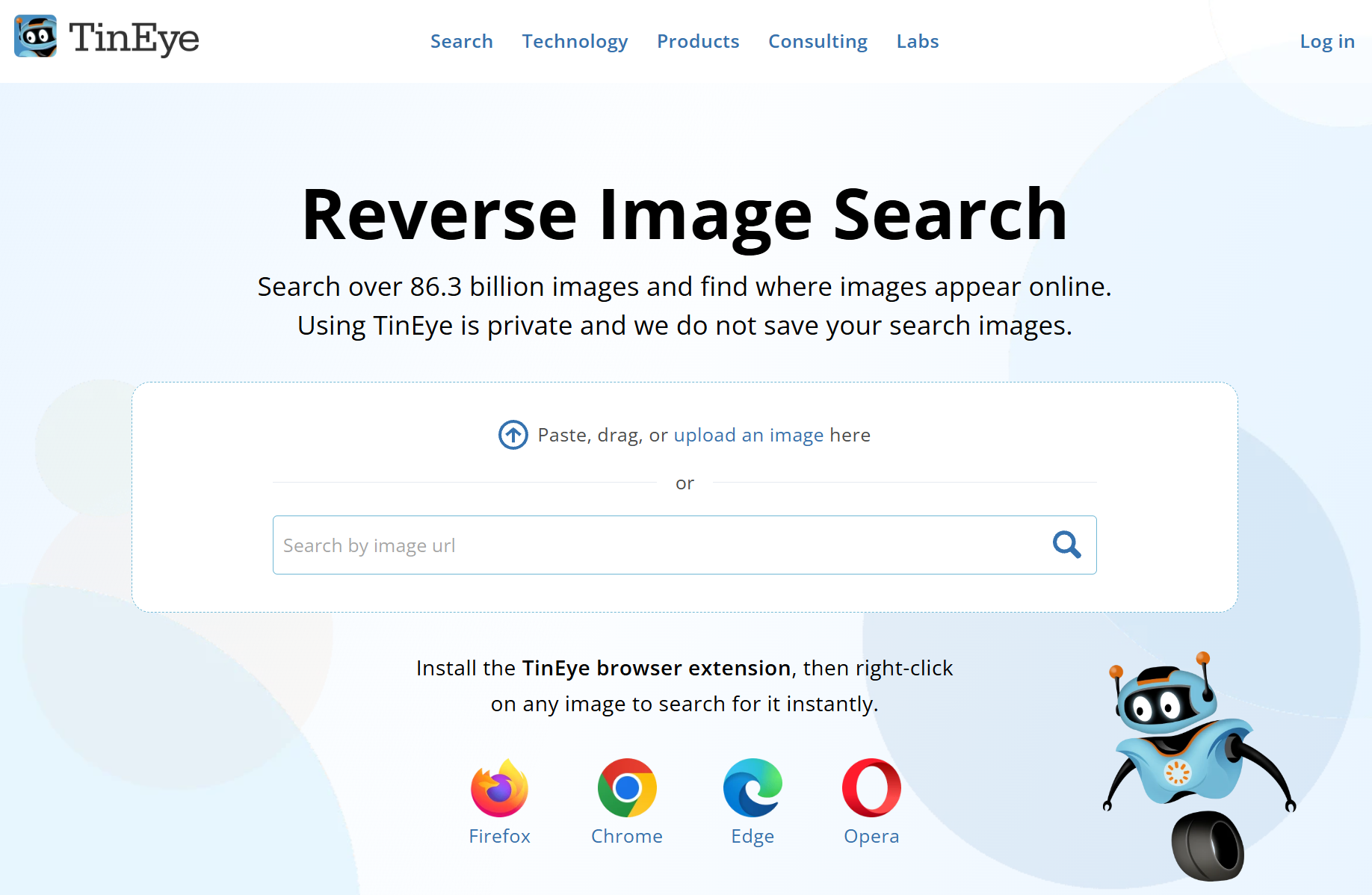
Bing helps you find pages. TinEye helps you track one file. Go to tineye.com, then upload your saved image or paste a direct image link.
Open the sort menu and choose Oldest. That shows the earliest appearance TinEye has indexed, which often points to the original upload rather than a later repost.
It also catches exact and modified copies, including cropped, resized, and color-shifted versions of the same photo. If someone lightened your shot and cropped out your watermark, TinEye can still surface it.
TinEye is free for noncommercial searches, and each result shows the date TinEye first found that copy.
Now read the list carefully. If the oldest match is not your own post, one of two things is true. Either the image existed online before you uploaded it, or you are looking at a licensed or stock copy. Either way, checking the copyright and source of an image before you send a takedown saves you from a claim you cannot support.
Yandex Images
If TinEye comes up empty, Yandex Images is worth a look, especially when people or places are involved.
Go to yandex.com/images, click the camera icon, then upload the file or paste an image link. Yandex is strong on faces and locations, and it sometimes finds copies on small business sites that Google misses.

Results include "Sites containing this image" plus visually similar images. That second list is handy for spotting cropped versions, like a wedding photo trimmed down for a vendor's homepage banner.
Treat Yandex as a second pass, not your first stop. The interface and result quality are less predictable than Google Lens, so run it after the basics.
It earns its place when the photo includes people or a recognizable location you suspect a business borrowed. If a match turns up on a commercial page, see what to do next.
Pixsy: check your whole Instagram feed automatically
Yandex is a manual check. If you want the checking to run without you, connect your Instagram account to Pixsy in one click, or upload a batch of photos. The free plan monitors up to 500 images, and paid plans cover more.
From there, Pixsy scans the web for your images 24/7. 150K+ creatives already use it to watch over 150M+ images. Matches appear on a dashboard grouped by country, category, and whether the use looks commercial, so you can see where your work shows up.
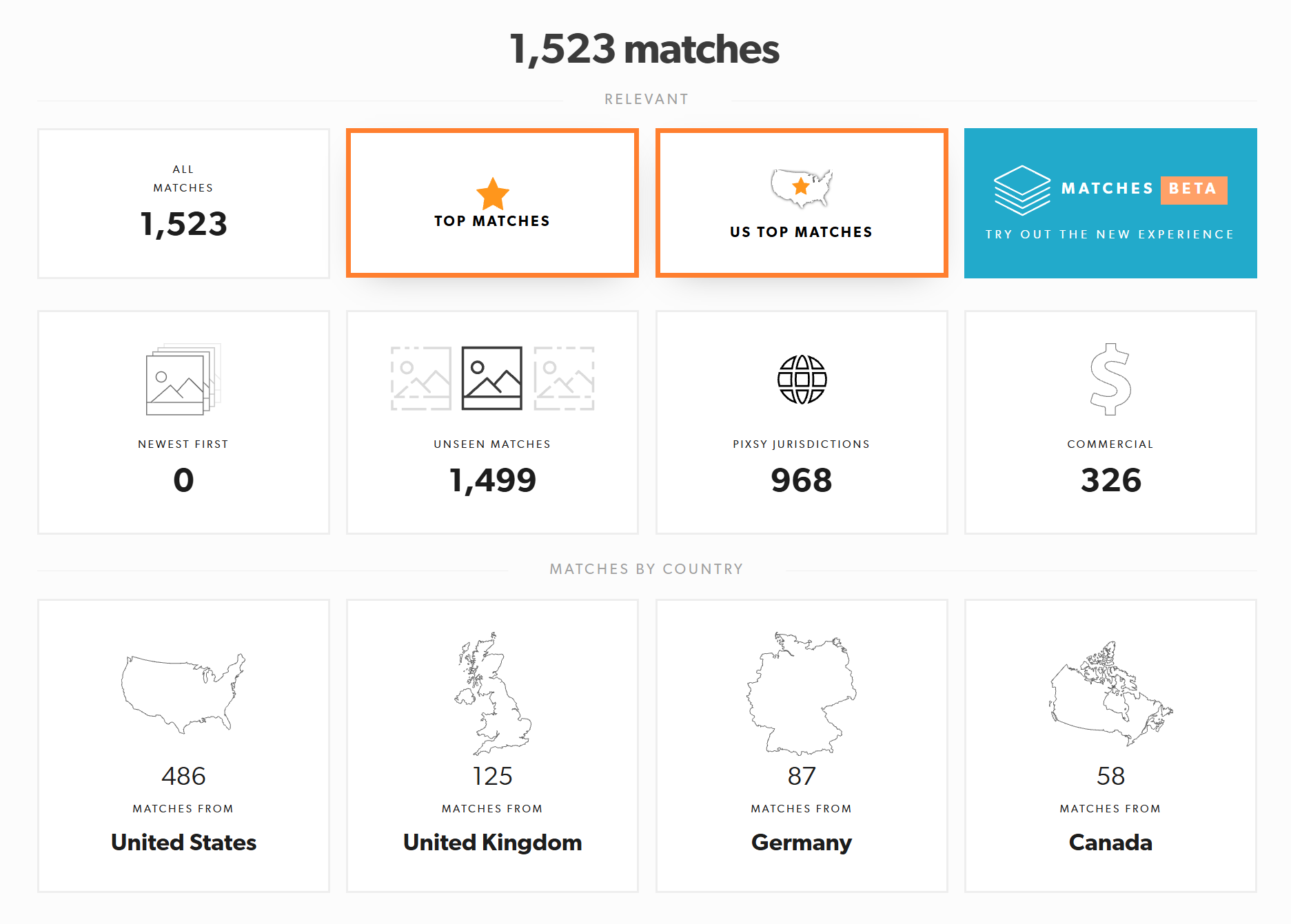
Match report email alerts flag new matches, so you don't have to re-run searches every time you post.
For a use you didn't authorize, send a legally binding takedown notice from Pixsy in one click. Notices are crafted to meet the requirements of more than 35 countries and translated into 14 languages. If a business is using your photo commercially, submit it as a case instead. Submitting a case is free, and it's no win, no fee: Pixsy only takes 50% of what it recovers.

Reverse image search tools compared
Here's how the five tools compare.
For a quick check, run the photo through Google Lens and TinEye. For ongoing checks, use Pixsy.
How to find out if someone is using your Instagram photos
A quick check is useful, but to catch reuse over time you need a repeatable process.
- Take inventory: pick the images with commercial value: portfolio hero shots, event coverage you license, product photos a brand paid for.
- Run an initial sweep: put your ten most valuable images through Google Lens, Bing Visual Search, and TinEye. This establishes a baseline of where they already appear. A wedding photographer might find the same ceremony photo on a venue's homepage and on a planner's Instagram, with no credit and no license in either place.
- Set up ongoing monitoring: connect Instagram to Pixsy so new posts are checked automatically. Manual searches capture one moment in time, and most theft happens months later.
- Review matches regularly: for each one, ask: Was this use authorized? Is it commercial? Does it credit or link back to me?
- Escalate by type: a personal repost may need only a credit request or a takedown. For business use, don't contact the business yourself. Submit it to Pixsy as a case first.
Found your photo? What to do next
Once a match is confirmed, document it before you do anything else. Screenshot the page and note the URL, the date, and how the image is used. Then check whether you gave permission through a contest entry, a brand deal, or a client contract. If the use is commercial, don't message the business yet; the section below explains why.
Someone reposted it on a personal account
If the match is a personal account, start with the assumption that it is a fan, not a thief. A short, polite DM asking for a tag and a link often fixes it in one message.
If the repost strips your watermark or the account ignores you, use the platform's copyright report form instead of arguing in the comments.
Keep a record anyway. Personal accounts grow into business accounts, and what starts as fan sharing can become unlicensed commercial use later.
Pixsy's self-service takedown notices work here too, especially when the account is in a country whose language you do not speak. You choose the match, and the notice goes out translated for that market.
A business is using it to promote or sell something
When a business uses your photo in its marketing, the situation changes. Commercial use without a license is copyright infringement, whether the business is a hotel, a wedding venue, a restaurant, or an online store.
License fees recovered for this kind of use typically range from $750 to $3,000, averaging $1,500. That range is based on one year of commercial use in the US, and it varies by country, client and licensing history.
Don't start with a takedown notice. It removes the image, and much of your chance of getting paid goes with it. A message gives the business time to delete the evidence. Submit the match to Pixsy as a case instead. Pixsy has handled 250K+ cases, and a case manager works out the license fee, contacts the business, and negotiates a retroactive license. A wedding photo on a venue's homepage for two years is a licensing conversation, not a takedown.
If the business refuses to pay, Pixsy can escalate the case to a partner law firm in its global network. Submitting a case is free, and it's no win, no fee: Pixsy takes 50% of what it recovers and nothing if it recovers nothing.
A fake account is using your photos
A business using your photo without a license is one problem. An account pretending to be you is a different one. Fake and impersonation profiles usually reuse your photos under a new name and bio, so report them for impersonation or copyright, not spam. Instagram routes each type of report differently.
Run the profile photo and two or three grid images through Google Lens and TinEye to confirm the account is leaning on your work. Screenshot everything before you report.
Report each stolen image separately and include the URL of your original post, so Instagram can compare the two.
Then warn your clients and followers, especially if the fake account is messaging people and asking for money or deposits. A quick story can stop someone from sending a deposit to a stranger.
Watch for your photos sitting next to scam links. That pattern is common on fake photographer accounts, and it can pull your name into fraud complaints you had nothing to do with.
Can you find an Instagram account from a photo?
Sometimes. Google Lens, Yandex, and face matching tools can point you toward an Instagram account, but results are hit and miss. Everything depends on what each engine has already indexed.
Instagram's own search is no help here. It matches accounts, hashtags, and captions, not the visual content of a photo, so it cannot do this job on its own.
The July 2025 indexing change helps a little. Public posts from professional accounts are now more likely to appear in Google, which makes image-to-account discovery slightly easier than before.
One warning before you try it: do not use these tools to identify private individuals. A face match is not proof of identity, and face search tools carry real legal and ethical risk.
If your goal is to credit or license the photo, message the profile or the site where the image appeared. That gets you a real answer faster than any tool output.
Frequently asked questions
Is reverse image search free? Google Lens, Bing Visual Search, and TinEye's basic tiers cost nothing. Pixsy's free plan monitors up to 500 images, and paid plans cover more.
Does it work on private Instagram accounts? Not directly. Private content is not indexed by search engines. You can only search an image you already have, and you should not expect access to someone else's private posts.
Can people see that I searched their photo? No. Reverse image search tools do not notify the account owner, and Instagram does not show who viewed a post.
Does Instagram notify someone when you save their photo? No. Saving, screenshotting, or copying a post link does not send a notification. The exception: screenshotting a disappearing photo or video sent in a DM can notify the sender.
Can you reverse image search a Reel or a Story? Reels are searchable if you screenshot a frame, since public Reels from professional accounts may be indexed. Stories are far harder because they expire and are not indexed. Save or screenshot before they vanish.
Do the results prove who owns the photo? No. A match shows where an image appears, not who owns the copyright. Your original files, metadata, and any registration are what establish ownership.
Start protecting your Instagram photos today
No search bar inside Instagram will do this work for you. Save the photo, then run it through Google Lens, Bing, TinEye, or Yandex.
That one search is a snapshot, though. The reuses that cost you money often surface months later on a venue's homepage, a business page, or a fake account. Checking manually every week isn't realistic.
Connect Instagram to Pixsy instead. New posts are checked automatically. Matches land in one dashboard, grouped by country and type of use, and email alerts tell you what's new without you running a thing.
When you find an unauthorized use, send a self-service takedown notice, translated for the country where it's posted. If a business is using your photo without a license, submit it as a case before you contact them. Submitting is free, and Pixsy only takes a fee if it recovers compensation.
Built by creatives, for creatives. Get started for free. The free plan monitors up to 500 images.


