
If you shoot for a living, your photos are probably being used somewhere you don't know about. A reverse image search is how you find out. You give it a photo, and it shows you the websites where that photo appears.
There are plenty of tools, and they're good at different things. This guide covers what each one does well for photographers, where it falls short, and when to use which.
The short version
- Best for a quick check: Google Lens. It's free, it's built into Chrome, and it searches the biggest index.
- Best for finding the original: TinEye. You can sort matches by date and see where a photo first appeared.
- Best second opinions: Bing Visual Search and Yandex Images. Each has its own index and catches things Google misses.
- Best for watching a whole portfolio: Pixsy. It searches 24/7 and alerts you when your photos turn up somewhere new.
What matters when you're a photographer
Most "best reverse image search" lists are written for people checking whether a dating profile is fake or where to buy a lamp. Photographers need something different:
- Exact copies, not lookalikes. You want pages that use your photo, even cropped or filtered, not a hundred similar sunsets.
- The page, not just the image. A match is only useful if you can see which website used it and how.
- Scale. Checking one photo is easy. Checking 2,000 every week by hand isn't.
1. Google Lens
Google replaced its classic "search by image" with Google Lens in 2022. For most people, it's the first stop.
How to use it: On a computer, go to google.com, click the camera icon and upload your photo or paste its link. In Chrome, right-click any image and choose "Search with Google Lens." On your phone, use the Lens button in the Google app.
What to look for: Scroll to the results for websites that have the image or a similar one. That's where copies of your photo show up.
Good at: Coverage. Google's index is the biggest, so it often finds the most copies.
Watch out for: Lens is built to identify what's in a photo, so results can fill up with products and similar-looking images. There are no alerts, so every check is a one-off.
2. TinEye
TinEye has done one thing since 2008: find where an exact image appears online. By its own count, it has indexed more than 77 billion images.
How to use it: Go to tineye.com, upload your photo or paste its link, then sort the results.
Good at: Tracing a photo back. You can sort matches by oldest, newest, best match, most changed or biggest image. "Oldest" helps you prove where your photo appeared first. "Most changed" shows edited or cropped versions.
Watch out for: Its index is smaller than Google's, so it can miss newer uses. It looks for copies of your image, not lookalikes, which is great for photographers but means fewer results.
Cost: Searching is free for non-commercial use, up to 100 searches a day and 300 a week. Alerts that keep watching your images are a separate paid service, and so is commercial use, so check TinEye's terms if you're searching for your business.
3. Bing Visual Search
Microsoft's Bing has its own image index, so it's a useful second opinion when Google comes up short.
How to use it: Go to Bing Images and click the camera icon. You can drag in a photo, upload one, or paste an image or link.
Good at: Showing the pages that contain your image, alongside related images.
Watch out for: Like Lens, it mixes in visually similar images, so you'll need to scan the results.
4. Yandex Images
Yandex runs its own reverse image search with a separate index.
How to use it: Go to Yandex Images, click the camera icon and upload your photo.
Good at: Turning up sites the other engines don't, because it crawls the web differently.
Watch out for: Results can include lots of loosely similar images, and the interface is less familiar to most users.
5. Pixsy
Everything above is a one-off search: you upload a photo and see who's using it today. Pixsy is different. It keeps searching for you.
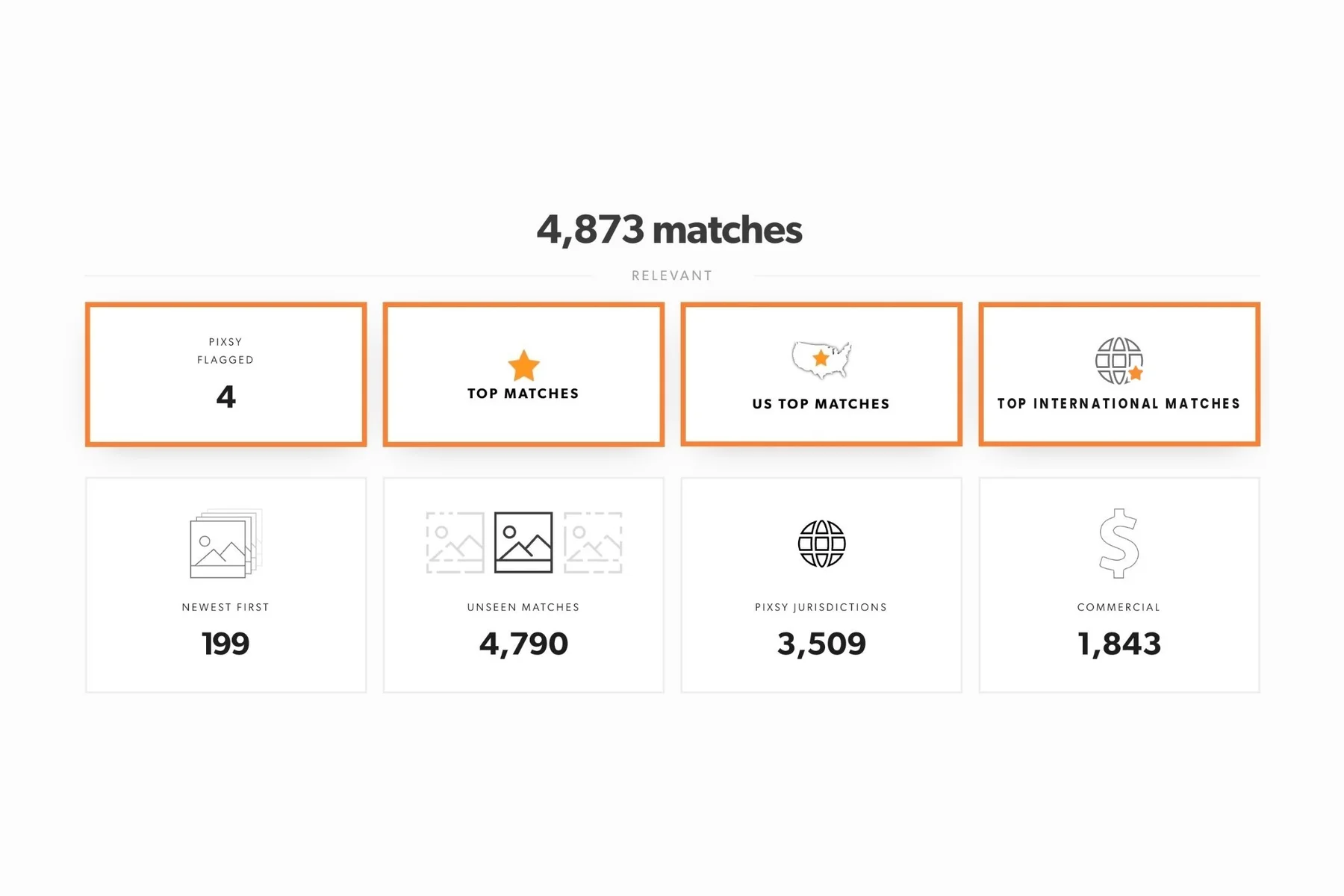
How it works: Import your portfolio from your computer, Instagram, Flickr, SmugMug and other sources. Pixsy's reverse image search and AI then check for matches around the clock and email you when they find new uses.
Good at:
- Scale: Pixsy protects more than 150M images every day.
- Sorting: matches are grouped by country, category and whether the use is commercial, so you can spot the ones worth acting on.
- Only new matches to review: decide on each match by approving it (a use you allowed), ignoring it, sending a takedown or submitting a case. Matches you've already dealt with drop out of your lists, so you only see new ones.
- Next steps in one place: send a takedown notice to remove a copy, or submit a case to recover a license fee. Cases are no win, no fee.
"Pixsy provides accurate image matches in places where services like Tineye and Google Images simply do not find any."
— Birgit F., Pixsy client review, 2017
Watch out for: Pixsy is built for monitoring your own work, not for one-off searches of any image you find online.
Cost: You can monitor 500 images free. Paid plans start at $19 a month for 2,000 images.
Which tool to use when
- You've spotted one suspicious use: run the photo through Google Lens and TinEye. Five minutes, no cost.
- You need to prove you published first: TinEye, sorted by oldest.
- Google found nothing but you're sure it's out there: try Bing and Yandex.
- You have a portfolio worth protecting: set up monitoring, so you're not repeating the same searches every month.
Tips for better results
- Search with your original file, not a thumbnail. More detail means better matches.
- Try a crop. With free tools, if someone used part of your photo, crop yours to that part and search again. Pixsy detects crops and other edits automatically, so you only need to upload the original.
- Use more than one tool. Each engine has its own index, and no single one sees everything.
- Save what you find. Take a dated screenshot of each page that uses your photo before it changes.
What to do when you find your photo
Finding the copy is step one. What you do next depends on who used it:
- A personal blog or social account: you'll usually want it removed. Here's how to send a DMCA takedown notice.
- A business: you may be owed a license fee. See how much a photo copyright claim is worth, or try our image theft calculator.
- Not sure: our guide to what to do when someone steals your photo walks you through it.
If you mostly share on Instagram, see how to reverse image search Instagram photos. For a step-by-step method, read how to find stolen pictures online.
To stop searching by hand, sign up free and let Pixsy watch your photos for you.
Reverse image search FAQ
What is the best free reverse image search?
For most photographers it's Google Lens, because it searches the biggest index. Use TinEye alongside it when you need to find where a photo first appeared. Both are free to search, though TinEye's free use is non-commercial and capped at 100 searches a day.
What's the best TinEye alternative?
Google Lens and Bing Visual Search both find more lookalike images. For exact copies of your own photos, run more than one engine. To keep checking automatically, use a monitoring service like Pixsy.
Can a reverse image search find cropped or edited photos?
Often, yes. TinEye's "most changed" sort shows edited versions, and Google Lens can match crops. Heavily edited or flipped images are harder, so it helps to search with a crop of the part that was used.
How do I find out if someone is using my photos without permission?
Run a reverse image search on your best-known photos, then check each page that shows up. To cover a whole portfolio, use a monitoring service that keeps searching and alerts you to new uses. Pixsy monitors 500 images free.
What should I do if I find my photo on another website?
If it's a personal or non-commercial use, you can send a DMCA takedown notice to have it removed. If a business used it, you may be owed a license fee, so check what your claim is worth before you contact anyone.


